<aside> <img src="notion://custom_emoji/512feff7-7523-4146-8b87-a22100a329dd/3336a857-e592-8012-a184-007a4c81348b" alt="notion://custom_emoji/512feff7-7523-4146-8b87-a22100a329dd/3336a857-e592-8012-a184-007a4c81348b" width="40px" />
This guide gets you from 0 to a working Claude Code setup. Made for beginners so you can skip if you’re already advanced.
But this is exactly what I wish I had when I first got started.
</aside>
<aside> <img src="notion://custom_emoji/512feff7-7523-4146-8b87-a22100a329dd/2c66a857-e592-8093-95d5-007a0fc93209" alt="notion://custom_emoji/512feff7-7523-4146-8b87-a22100a329dd/2c66a857-e592-8093-95d5-007a0fc93209" width="40px" />
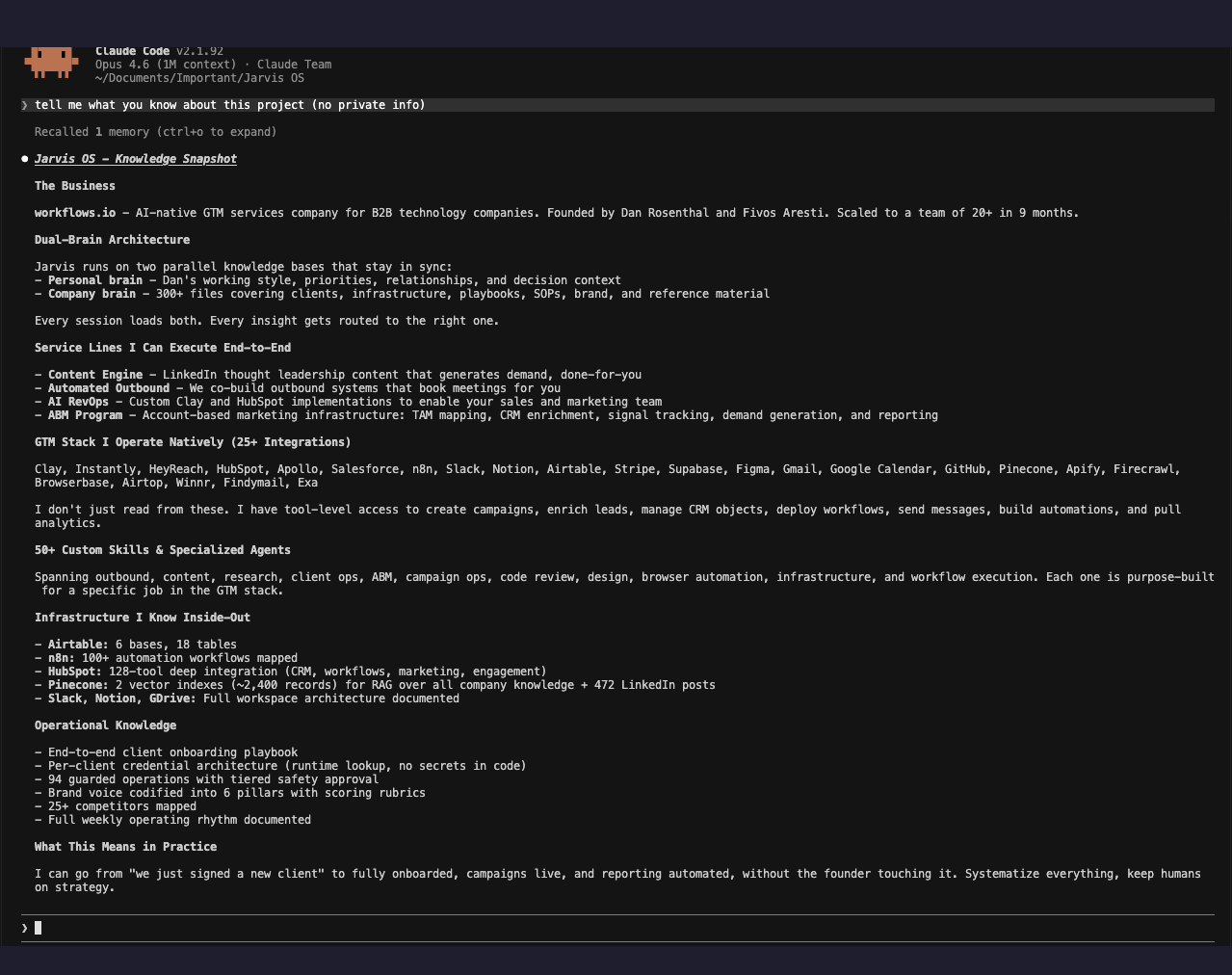
This is what it looks like when your Company OS is set up. Claude knows your entire business from a simple prompt
It’s hard to put into words how unbelievable Claude Code is once you invest the time into properly setting it up.
Now, it’s far from perfect.
But it is so much more powerful than anything else I’ve tried.
To get to this level of output, there are three main things you have to setup in Claude Code:
This guide will walk you through all 3.
But first, let me explain how these pieces fit together. There are a lot of terms you should understand before you start building.
CLAUDE.md is the center of everything. It's the one file Claude reads every session. It points to all your other files using @path/to/file references. Your company overview, your brand voice, your tool configs, your skills. Think of it as the table of contents for your Claude project and, in this case, your Company OS. Without it, Claude starts every session blank. With it, Claude already knows who you are.
Context files are where your actual company knowledge lives. company/overview.md, company/voice.md, wiki/outbound-playbook.md, and so on. Plain markdown files organized by topic. Core context and brand live in company/. Reference docs, playbooks, and SOPs go in wiki/. The more context you add, the more useful Claude becomes. This is the part most people underestimate. A Company OS with 10 well-written context files is dramatically more useful than one with just a CLAUDE.md.
Skills are reusable playbooks that teach Claude HOW to do specific things. Each skill is a .md file with a framework, steps, examples, and anti-patterns. When you say "write me a cold email sequence," Claude loads the outbound-copywriter skill and follows the SPARK framework. Skills use your context to produce output that actually sounds like you, not generic AI.
Hooks run before Claude takes an action. They're your safety net. The safety guard blocks things like sending emails, deleting data, or pushing code without your approval. You set them up once and only revisit them when they need reconfiguring.
Tools are how Claude reaches your external systems. Three types:
Plugins are bundled in your starter kit under the plugin/ folder. The Workflows Engineering Plugin gives you /workflows:plan, /workflows:work, /workflows:review, /workflows:swarm, /workflows:brainstorm, and /workflows:compound. Built on Compound Engineering by EveryInc, improved for business use cases. Optional, but powerful.
The flow: CLAUDE.md loads your context. You give a task. Claude picks the right skill. The skill uses your context and tools to execute. Before any dangerous action, hooks intercept. All of this can be packaged into a plugin and shared with your team.
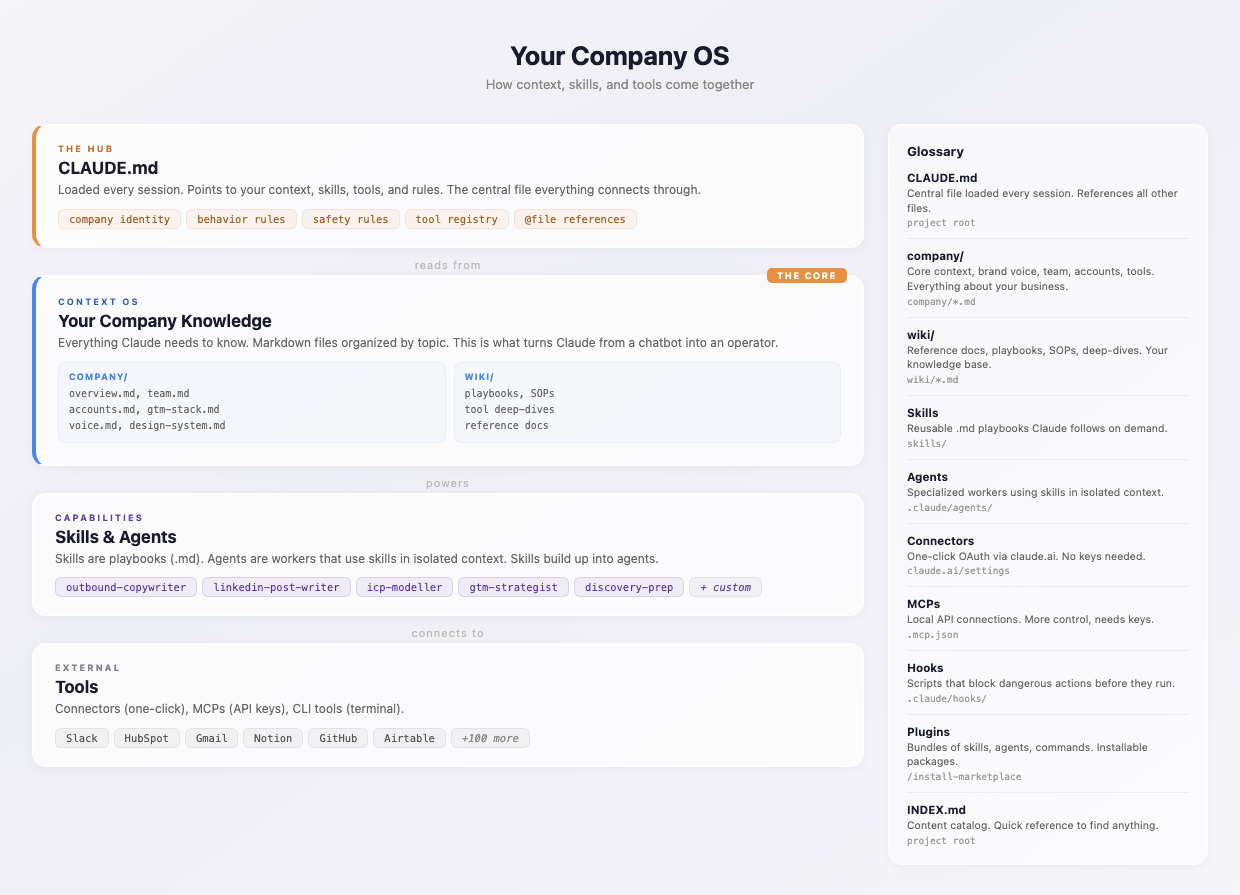
Claude Code system broken down
Here's what the finished product looks like inside Cursor:
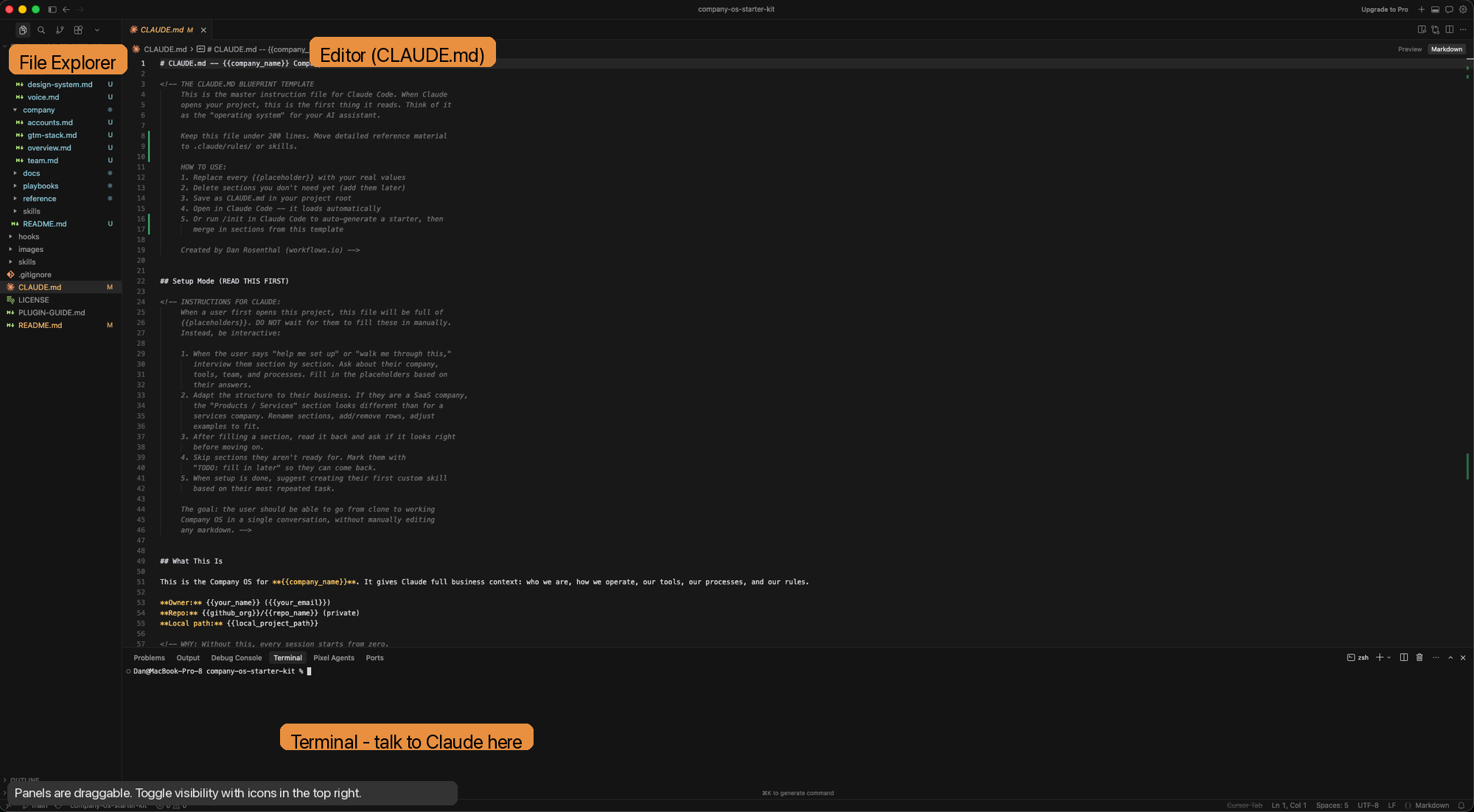
Cursor with Claude Code
What you're looking at:
You might see an agent panel on the right side. That's Cursor's built-in AI, not Claude Code. We use Claude Code in the terminal instead. Click the panel icons in the top right to show or hide any panel. All panels are draggable and resizable.
Cursor is a code editor built for AI. It looks and works like VS Code, but with AI baked in. You don't need to know how to code.
For our purposes, Cursor is where you open your Company OS and talk to Claude Code.
Before you download it, create a folder on your computer called CompanyOS. Put it in your Documents folder, your Desktop, wherever you keep important files. This is where your Company OS will live. Just a normal folder, nothing technical.